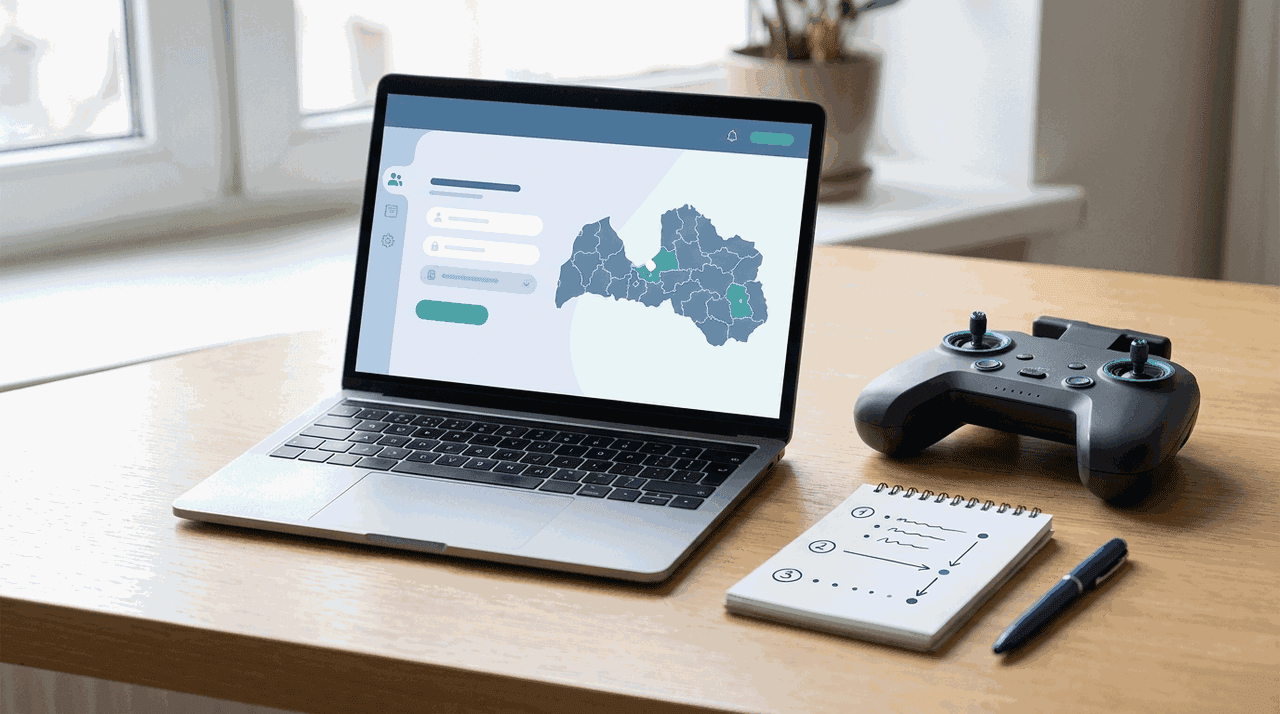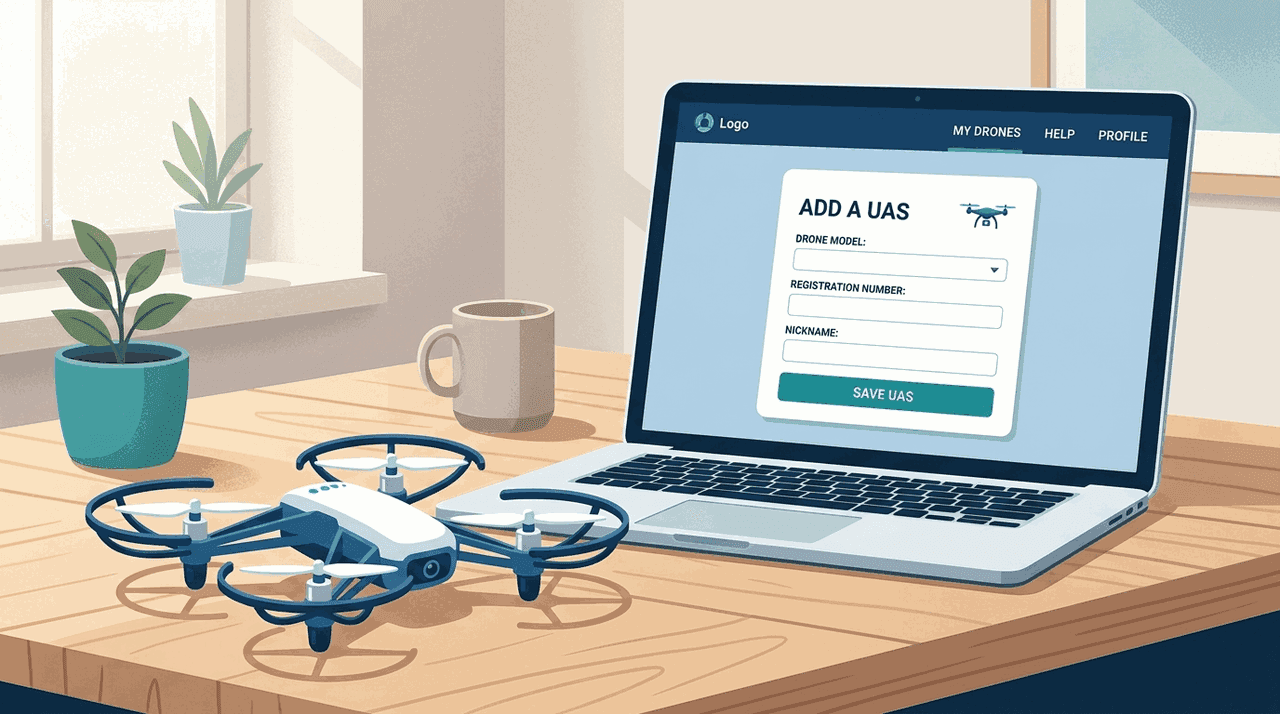
The BGKIS flight request form does not let you type in a drone from scratch. You choose it from the drones already on your account. So before you build a request for a UAS geographical zone, add the drone first. It takes a minute, and it gives the aircraft the BGKIS-assigned UAS number the request needs.
This step sits before everything else. If the drone is missing, the request simply has nothing to select.
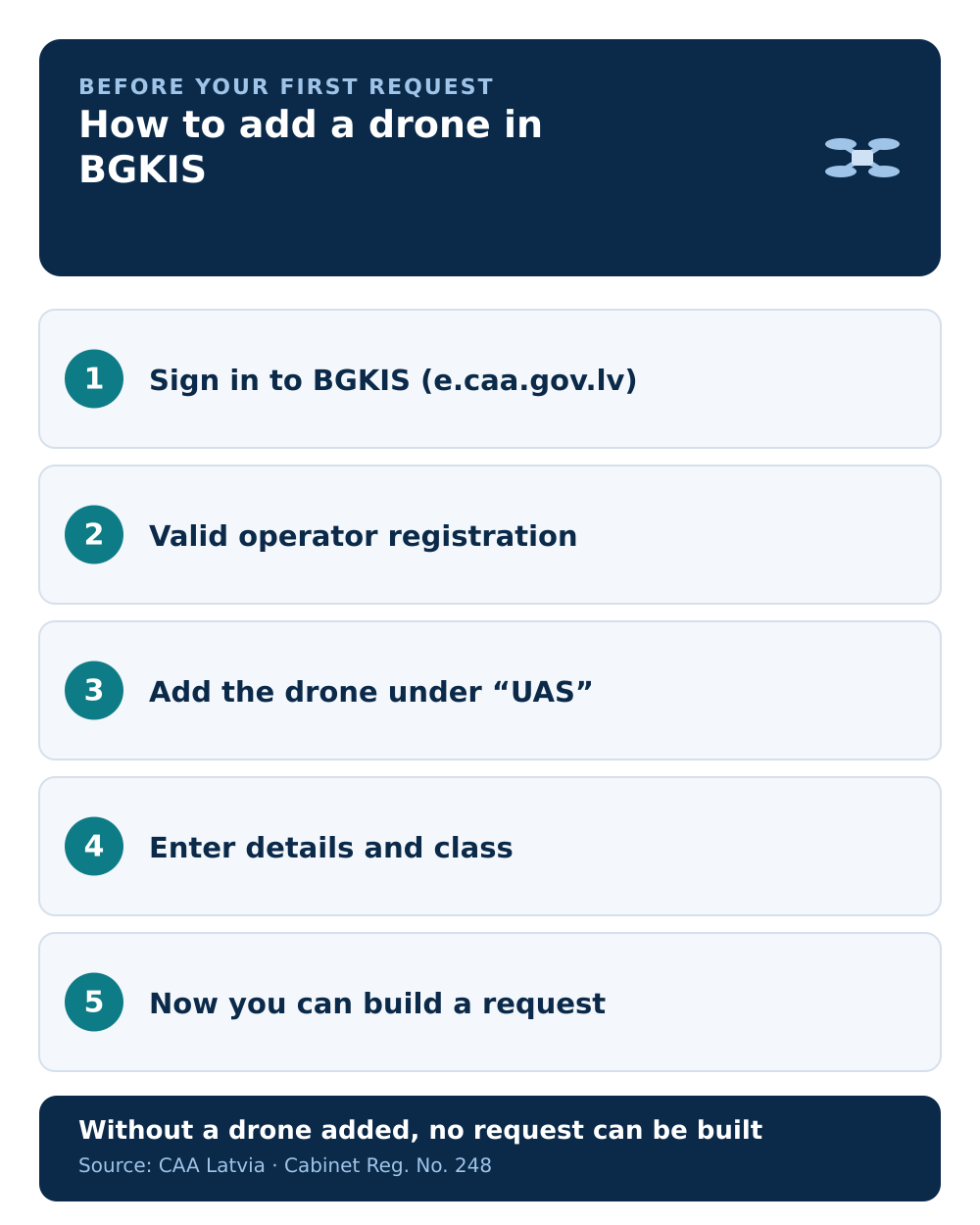
Where to add it
Adding a drone lives in its own section, separate from the flight form:
- Open the "UAS" section in your profile.
- Choose "Add new" (top right, above the table).
For a company, the same section is managed by anyone with the operator profile user role. They can also transfer a drone or mark it as lost or stolen. Company setup is covered in BGKIS for companies.
Choosing the model
When you start typing the model name, the field suggests matches, but the first list does not show every model in the system. There are two cases to know:
- The model appears — select it, fill in the fields shown for that model, and save.
- The model is not listed — choose "Other" and enter the details manually.
There is one exception worth flagging.
C-class drones that don't appear
If your drone carries a C-class mark (C0–C4) and it does not show up in the list, do not just pick "Other". The CAA asks you to contact them at uas@caa.gov.lv so the class-marked model is handled correctly. The class is part of what a flight request records, so getting it right here matters later.
What you get
Once saved, the drone appears on your account with a BGKIS-assigned UAS number. The flight request then uses that number together with the manufacturer and model, the UAS class, and, where applicable, the remote-identification device and its serial number. For the full list of request fields, see what data the request requires.
Four numbers, and only one goes on the aircraft
By the time the drone is on your account you are carrying several identifiers, and they are not interchangeable:
| Number | What it identifies | Goes on the drone? |
|---|---|---|
LVA############ | the UAS operator — you, or your company | yes, every aircraft |
LVA-RP-############ | the remote pilot | no |
| BGKIS-assigned UAS number | this specific aircraft in your requests | no |
| remote-identification secret key | your drone in the remote-ID system | no — issued separately in the e-services portal |
The marking rule is the one people improvise. The operator number must be readable without any tools; where the aircraft is too small for that, the CAA allows it inside the battery compartment. A sticker under a folded arm that needs a screwdriver to reach does not satisfy the requirement.
Note also which number is not on the list of things to mark: the remote-pilot number. It exists so exams and requests can be tied to a person, not to label the aircraft.
The registration behind it has a one-year clock
Adding a drone is a one-off; the registration under it is not. Operator registration costs 5 EUR and is valid for one year, and it is done once regardless of how many drones you own. If it lapses, the flights section stops appearing — the drones stay on the account, but there is nothing to submit them with.
Add every drone you'll fly
If you operate more than one aircraft, add each of them now. The flight form lets you pick the specific drone for that operation, so having them all on the list means you are not interrupted mid-request to go back and add one.
Common mistakes
- Starting the flight request first. The drone has to exist before you can select it.
- Picking "Other" for a C-class drone. Contact the CAA instead so the class is recorded correctly.
- Adding only one of several drones. Add each aircraft you may fly, so the request list is complete.
- Assuming this replaces operator registration. Adding a drone is separate; you still need a valid operator registration for the flights section to appear.
Next step: with the drone added, continue to the step-by-step flight request guide.