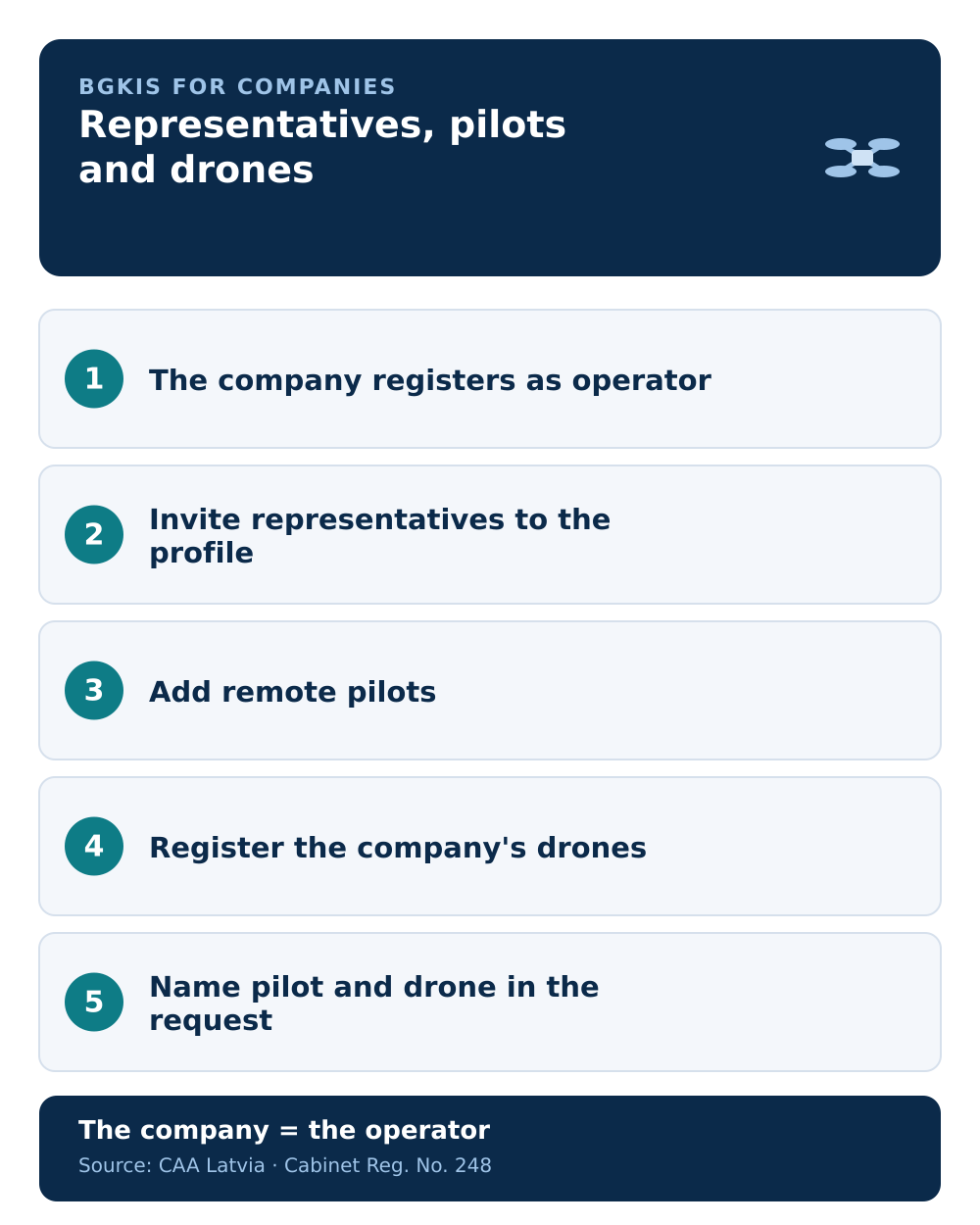
When a company flies drones, the operator is the legal entity, but the people who file requests and fly are employees. BGKIS keeps these roles separate on purpose, so a company has a short setup to do before its first flight request: add the representatives who manage the account, link the pilots who can be named in requests, and add the drones. Set this up once, and filing requests in UAS geographical zones becomes routine.
This assumes the company already holds a valid UAS operator registration. If your operator is registered abroad, start with foreign operators in BGKIS instead.
The operator profile user role
To let several people act for the company, BGKIS uses a role called the operator profile user. You can grant it to multiple representatives, and it gives them the ability to:
- manage users — invite remote pilots to the company profile
- manage UAS — add the company's drones, transfer them, or flag a drone as lost or stolen
- manage flight operations — file flight requests on the company's behalf, manage them, and track their status
- report occurrences — submit incident reports
Only the legal entity and the people holding this role can file flight requests in the company's name.
Step 1 — Add representatives
Representatives are invited, not created. The person you invite must already have their own valid BGKIS profile.
- Open "User management" and choose "Add representative".
- Enter the person's personal identity code, their work email, and their work phone number.
- Send the invitation. The entry appears in the table only after the person accepts, and the invitation link is valid for 24 hours.
If the invitee has no BGKIS profile yet, the invitation is queued but not delivered — so have them create a profile first.
Step 2 — Link remote pilots
A pilot has to be attached to the company profile before they can be named in a request. The pilot must already have a valid BGKIS profile and a remote pilot number.
- In "User management", choose "Add remote pilot".
- Enter the pilot's personal identity code, work email, and work phone number.
- Send the invitation (again, valid 24 hours). Once accepted, the pilot appears in your list with the remote pilot role.
Only pilots shown in this table can be selected when you fill in a flight request. The difference between the operator and the pilot is worth keeping clear — see operator vs remote pilot.
Step 3 — Add drones
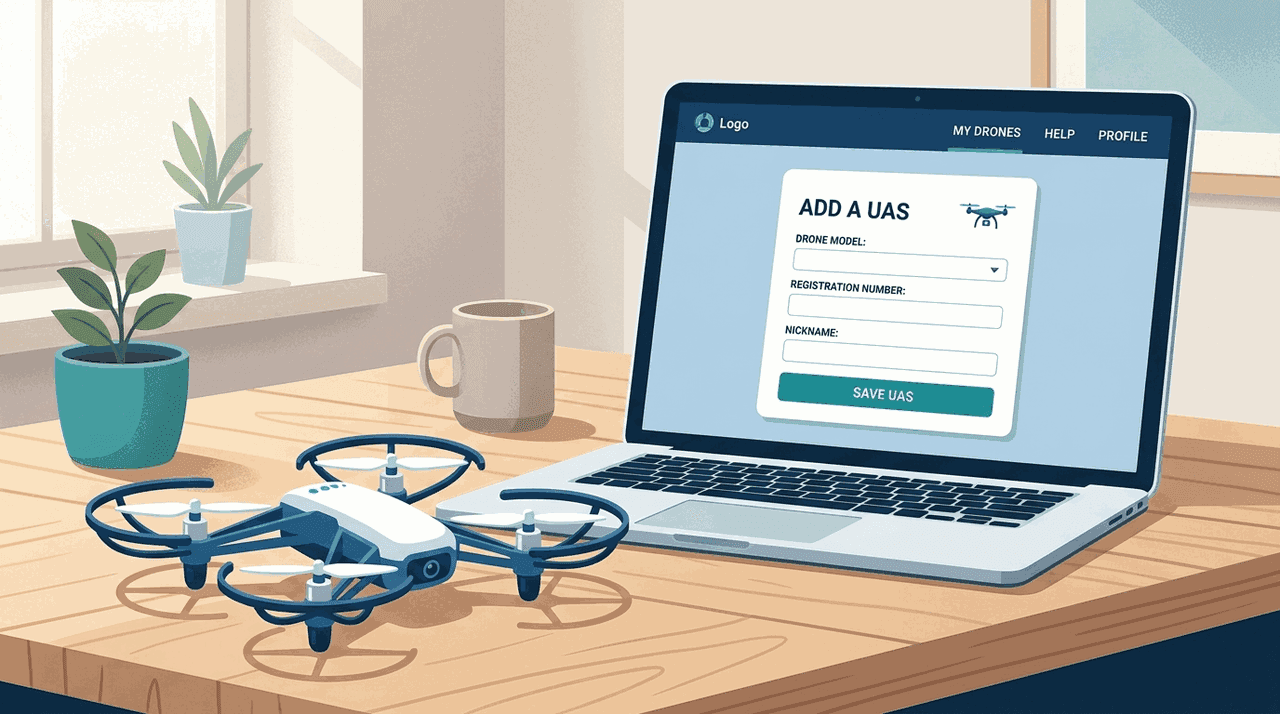
Add each drone the company operates, so it can be picked from the list when building a request.
- Open the "UAS" section and choose "Add new".
- Start typing the model name; if it is not listed choose "Other", and for a C-class drone that does not appear, contact the CAA at
uas@caa.gov.lv. - Fill in the fields for that model and save.
A fuller version is in adding a drone in BGKIS.
Step 4 — File the flight request
With representatives, pilots, and drones in place, open "UAS operations (flights)" and build the request. In a company request you name the company as operator and select one of the linked pilots. Save keeps a draft; Submit sends it to the zone manager. The full walkthrough is in how to submit a flight request.
Common mistakes
- Inviting someone with no BGKIS profile. The invitation will not reach them until they have one.
- Letting the 24-hour link expire. Re-send if the invitee did not accept in time.
- Expecting a pilot to appear in requests before accepting. Only pilots who accepted and hold the remote pilot role are selectable.
- Forgetting the operator registration. Without a valid company operator registration, the flights section stays hidden regardless of how many pilots you added.
Next step: continue with the step-by-step flight request guide.