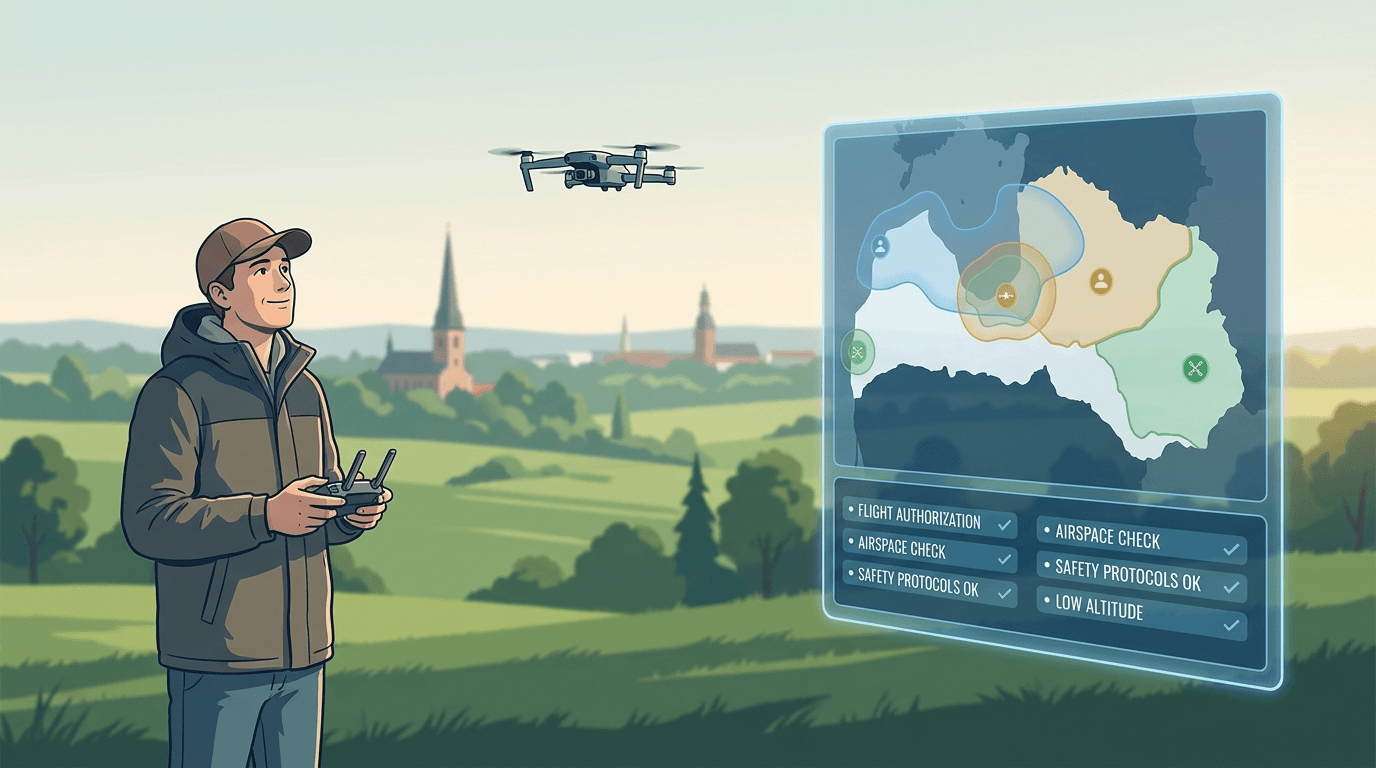
If your flight falls inside a UAS geographical zone that requires submission or coordination, you file the request in BGKIS before you take off. The form itself is short. Most mistakes happen before it — an expired registration, or a drone that was never added to your account. This guide walks the whole sequence in order.
This assumes you already know a zone applies. To find that out, check the official map at airspace.lv/drones first; BGKIS is for the request, not for discovering current restrictions.
Before you start: a valid operator registration
To submit, you need a BGKIS account with a valid UAS operator registration. The operator is the person or company on whose behalf the flight is carried out. The registration is valid for one year. If your account exists but the operator registration is missing or expired, the "UAS operations (flights)" section simply will not appear.
You can check this on your profile's home view: it shows the UAS operator status. If it reads "Registration valid", the flights section is available. For individuals, note that you usually hold both roles — operator and remote pilot — so both registrations need to be valid.
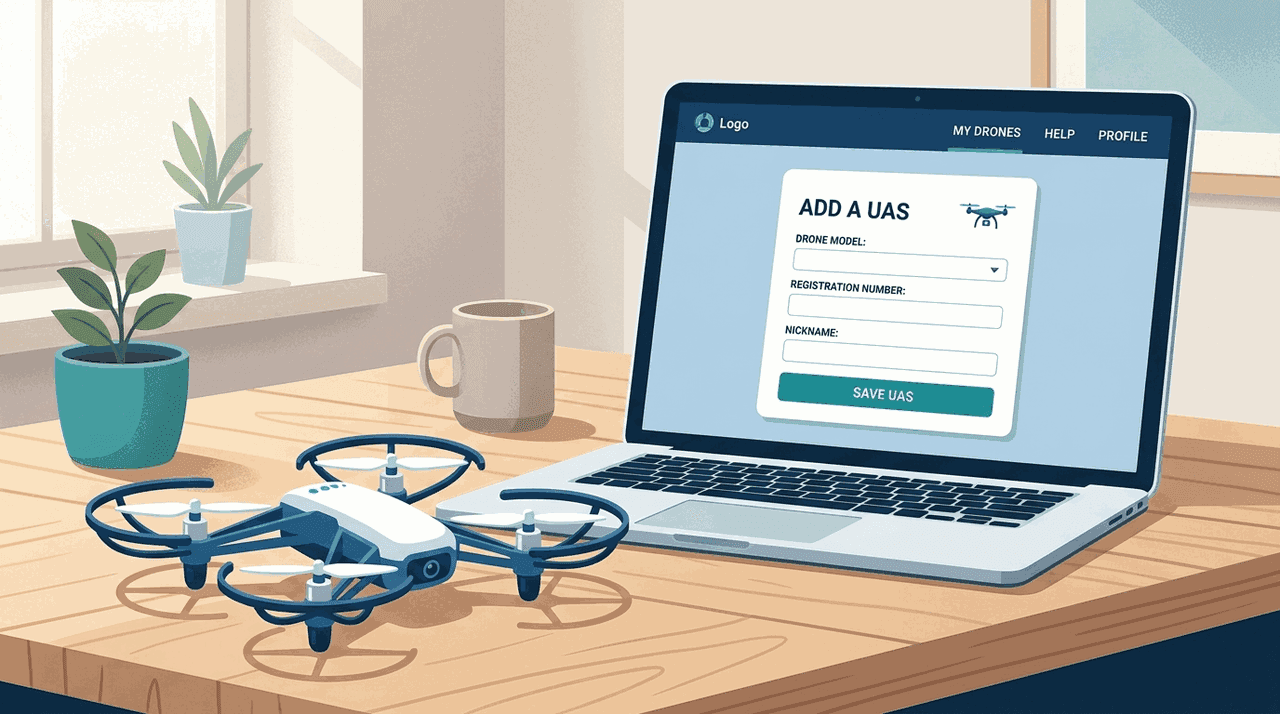
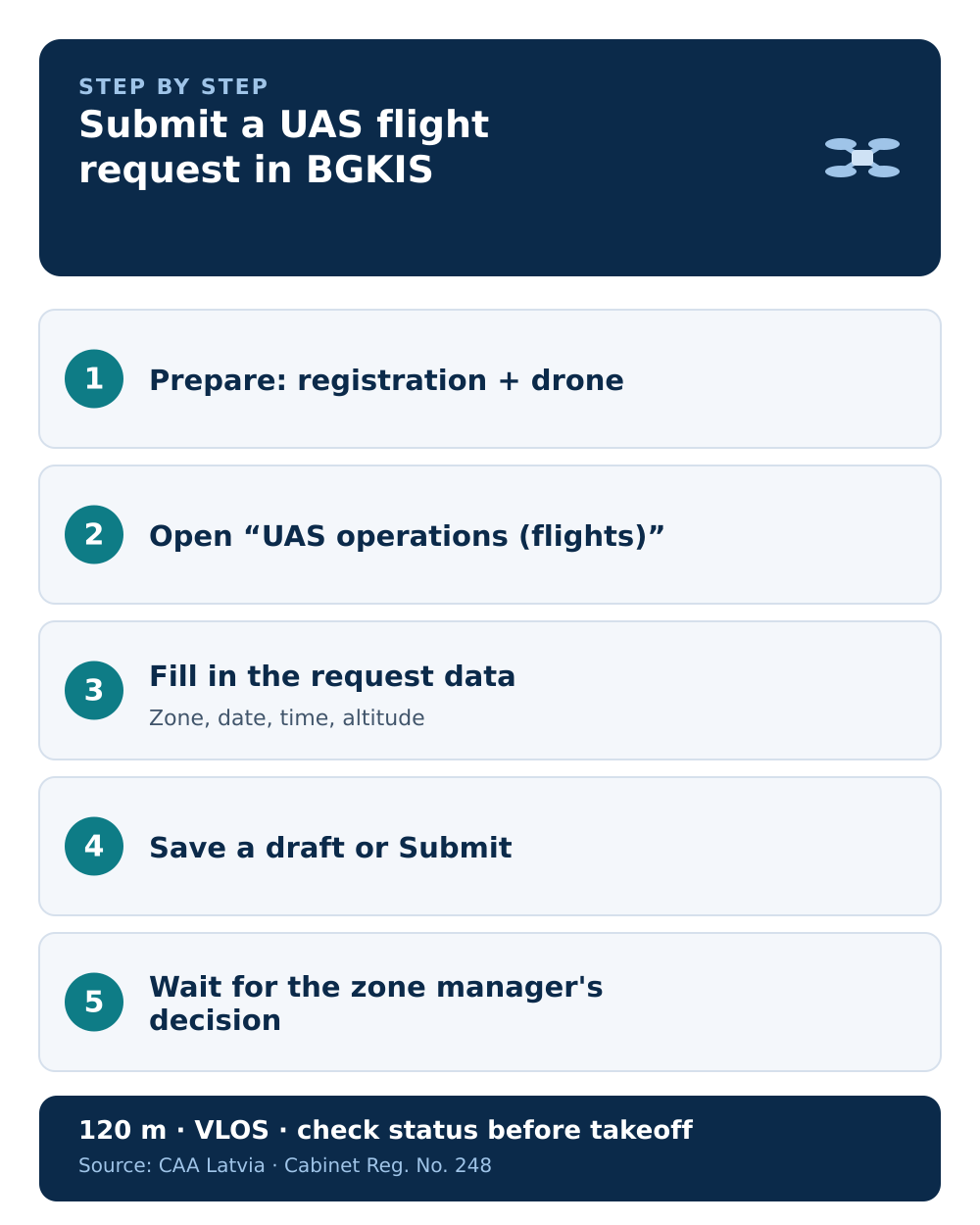
Step 1 — Add your drone
Before building a request, the drone has to exist in your account, because the form lets you pick it from your list.
- Open the "UAS" section and choose "Add new".
- Start typing the model name. If it is not in the list, choose "Other"; if the drone carries a C-class mark and does not appear, contact the CAA at
uas@caa.gov.lv. - Fill in the fields shown for that model and save.
A fuller version of this step is in our guide to adding a drone in BGKIS.
Step 2 — Open "UAS operations (flights)"
With a valid registration and at least one drone added, open the "UAS operations (flights)" section. This is where you create and track every request.
Step 3 — Fill in the request
Part of the form is filled automatically from your profile. Under Cabinet Regulation No. 248, point 54, a request includes:
- Operator — registration number, name, contact details.
- Remote pilot — CAA-assigned remote pilot number, name, contact details.
- Drone — the BGKIS-assigned UAS number, manufacturer and model, UAS class, and the remote-identification device and its serial number where applicable.
- The planned flight or series — the area of flight (one or more zones), start and end date and time, maximum height, and purpose. If you fly in the specific category, also the type and number of your CAA operating authorisation.
For a field-by-field breakdown, see what data the request requires.
Step 4 — Save a draft, or submit
Two buttons do different things:
- Save keeps a draft. Nothing is sent.
- Submit sends the request to the zone manager(s).
Both drafts and submitted requests stay in the "UAS operations (flights)" list, so you can reopen, reuse, and track them.
After you submit
What happens next depends on the zone type. A coordination zone routes your request to the manager for a decision. A notification zone simply receives your notice. Submission is not the same as permission — in coordination zones, wait for the decision.
Keep one thing in mind: an approval can be cancelled. Before you launch, re-check the request status and the zone's current conditions, and re-check airspace.lv/drones, because airspace information can change during the day.
Before takeoff
- The request status is current and, in coordination zones, approved.
- The zone's conditions have not changed since you filed.
- You are still within the baseline rules — 120 m maximum height and visual line of sight — which an approval does not lift.
Next step: once you have an approval, see what to check before takeoff.